UX Anatomy
UX Anatomy: The Password Field
A darkly whimsical UX Anatomy field note on the password field: why secret inputs, hidden rules, strength meters and reveal controls can make or break user confidence.
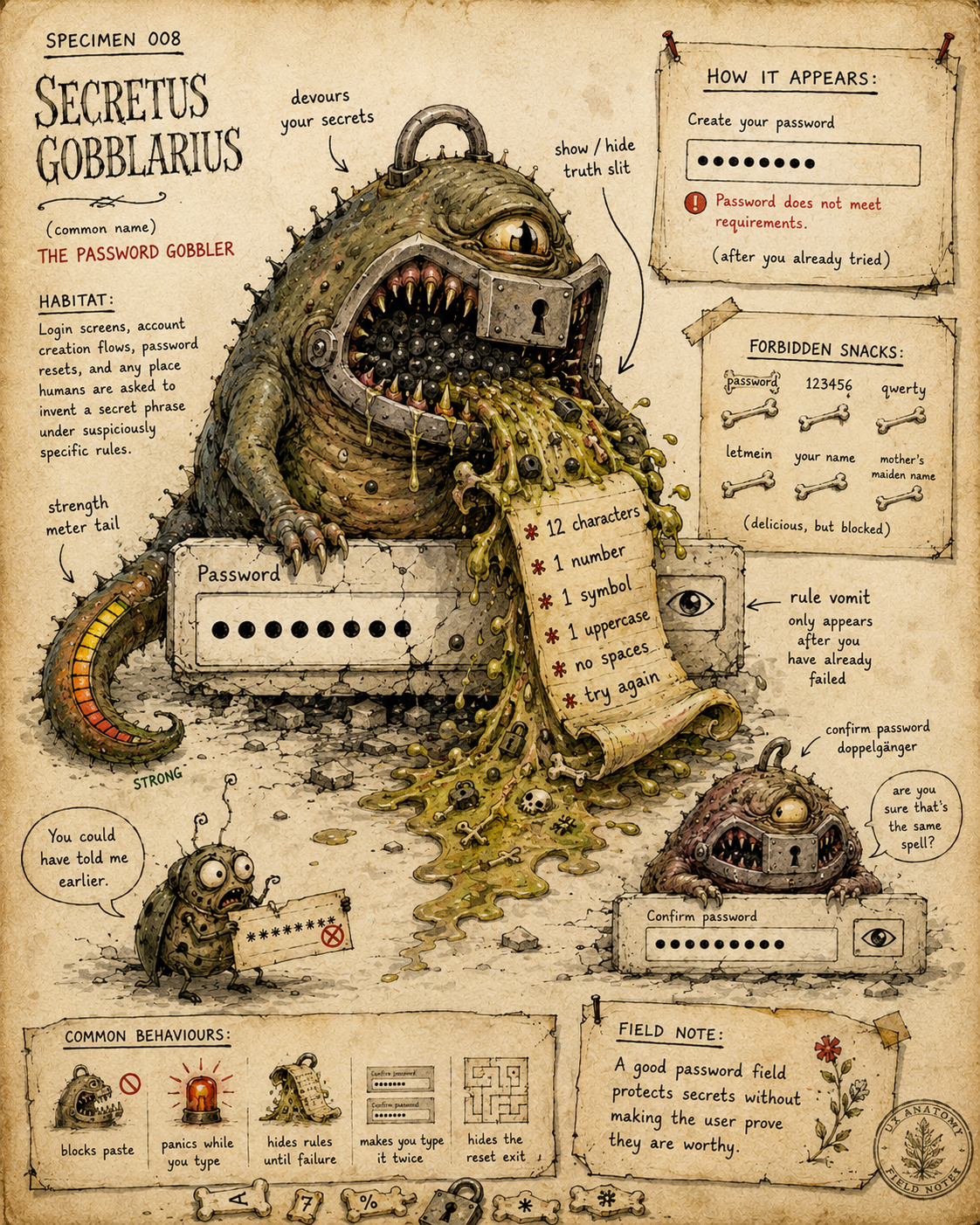
Specimen 008: The Password Field / Password Gobbler
Creature name: Secretus Gobblarius
Common name: The Password Field / Password Gobbler
Habitat: Login screens, account creation flows, checkout registration, password reset journeys, security settings, app onboarding, and anywhere the user is asked to invent a secret phrase under suspiciously specific ritual conditions.
Field Description
Secretus Gobblarius is the secret-eating creature that lives inside password fields.
In its healthiest form, it protects sensitive input while helping the user understand what is expected. It supports entry, correction, visibility, accessibility and recovery without turning account creation into a cryptographic escape room.
In unhealthy specimens, it becomes a furtive little password gobbler.
It swallows the user’s input. It hides the evidence behind dots. It rejects perfectly reasonable attempts. It blocks paste. It mutters about strength. Then, after the user has already failed, it violently vomits up a scroll of password rules that apparently existed all along.
A password field is not just a box for secrets. It is a tiny trust ritual with teeth.
Anatomical Function
The Password Field exists to capture sensitive text while reducing the risk of accidental exposure.
Its job is to balance:
- Privacy
Hiding sensitive input when appropriate - Accuracy
Helping users enter what they meant to enter - Security
Supporting safer passwords without unnecessary theatre - Confidence
Making the user feel in control - Recovery
Helping users fix mistakes without punishment
This balance matters because password fields are unusually high-friction. The user cannot easily see what they typed. The rules may be unfamiliar. The stakes feel personal. One typo can block progress.
A healthy password field does not merely conceal. It helps.
Healthy Password Field Traits
A healthy Secretus Gobblarius should:
- clearly label the field as a password field
- explain password requirements before the user fails
- allow users to reveal and hide their password
- make the reveal control understandable and accessible
- allow paste and password managers
- support autofill and credential managers properly
- avoid wiping entered passwords unnecessarily
- explain errors clearly
- avoid aggressive validation while the user is still typing
- make password reset routes easy to find
- avoid security theatre that makes the experience worse without meaningfully improving protection
The best password fields feel calm, clear and trustworthy.
The worst ones feel like a tiny locked bin shouting riddles.
Common Mutations
1. The Rule Vomiter
This mutation hides password requirements until after the user has already tried and failed.
The user enters a password. The system rejects it. Only then does Secretus Gobblarius produce the sacred scroll:
- must be 12 characters
- must include one uppercase letter
- must include one number
- must include one symbol
- must not include spaces
- must not include your name
- must not include any detectable sign of human exhaustion
This is not guidance. This is ambush theatre.
Password requirements should be visible before and during entry, not regurgitated after failure like a cursed security hairball.
2. The Dot Devourer
This mutation hides every character immediately, giving users no way to check what they typed.
Masking can protect privacy, especially in public spaces. But total concealment can also create avoidable errors.
A healthy password field usually includes a show/hide control so users can verify their input when needed.
The goal is not to make the password unknowable to the person who just typed it.
3. The Paste Blocker
This mutation prevents users from pasting passwords into the field.
It often appears under the false banner of “security”, despite making life worse for people using password managers, long unique passwords or accessibility tools.
Blocking paste encourages weaker, easier-to-type passwords. It also punishes users who are doing the sensible thing.
If your field blocks paste, Secretus Gobblarius has eaten the wrong end of the security manual.
4. The Strength Meter Oracle
This mutation offers a password strength meter that behaves like a moody fortune teller.
It may say:
- Weak
- Medium
- Strong
- Very strong
- No, not like that
- Better, but spiritually disappointing
Strength feedback can be useful when it explains what would improve the password. It is less useful when it simply judges the user with coloured bars and no practical guidance.
A good strength meter helps the user make a better choice. A bad one just changes colour while quietly insulting them.
5. The Confirm Password Doppelgänger
This mutation adds a second password field and asks the user to type the same secret again.
Sometimes this helps catch typos. Sometimes it doubles the chance of error and frustration, especially when both fields are masked.
If a confirm password field is used, it should support reveal controls, clear mismatch messaging and sensible timing.
Do not make users blindly type the same invisible spell twice and then act shocked when the incantations differ.
6. The Premature Security Goblin
A close cousin of Errata Snappus, this mutation panics while the user is still typing.
It flashes red. It marks rules as failed. It complains before the password can possibly be complete.
Live requirement feedback can be helpful, but only if it feels like progress support rather than a rolling list of accusations.
There is a difference between:
3 more characters needed
and:
INVALID. WEAK. FAILURE. DISAPPOINTING.
One helps. One summons the gobbler.
7. The Reset Maze
This mutation hides password recovery behind unclear links, vague emails, expired tokens, poor messaging or dead-end reset screens.
Password reset is not a side quest. It is part of the password experience.
If users cannot recover access calmly, the password field has failed its wider ecosystem.
Behavioural Symptoms
You may have an unhealthy Secretus Gobblarius infestation if users:
- repeatedly fail account creation
- choose weaker passwords to satisfy confusing rules
- abandon registration at the password step
- mistype hidden passwords and cannot check them
- get stuck on password confirmation mismatches
- request password resets immediately after account creation
- complain that the password rules are unclear
- cannot use password managers
- are blocked from pasting secure passwords
- feel personally judged by vague strength meters
- create passwords based on visible rule hacks rather than genuine memorability or safety
Password fields are small, but they can create a large amount of user rage per pixel.
UX Diagnosis
Password fields sit at the intersection of usability, trust, security and anxiety.
This is why they often go wrong.
Designers and developers sometimes treat them as simple secure inputs. But users experience them as a moment of risk: they are creating or entering something private, often under pressure, often with limited visibility, and often with rules they did not invent.
The field may look tiny, but the cognitive load is not.
Bad password fields make users fight the interface while trying to protect themselves. They hide the input, hide the rules, punish password managers, reject attempts without explanation, and then blame the user for failing the ritual.
Good password fields reduce unnecessary uncertainty. They show requirements early. They support password managers. They allow reveal when useful. They explain errors clearly. They help users recover.
The goal is not to make password entry feel dramatic.
The goal is to make secure behaviour easier than insecure behaviour.
Accessibility Notes
Password fields need careful accessibility treatment because they combine hidden text, validation, assistive technology, error recovery and security expectations.
Watch for:
- missing or unclear field labels
- reveal buttons with vague names like “eye” or no accessible name
- reveal state not announced clearly
- password requirements not programmatically associated with the field
- error messages not connected to the input
- validation messages that update without being announced
- low contrast strength meters
- colour-only rule feedback
- paste blocking that interferes with assistive workflows
- password managers or autofill being broken by incorrect attributes
- confirm password fields that create unnecessary typing burden
- reset links that are hard to find by keyboard or screen reader
Use appropriate autocomplete attributes where relevant, such as current-password for login and new-password for account creation or reset flows.
A password field that cannot work with password managers is not “more secure”. It is a small locked door with a sign saying “please use worse habits”.
Practical Treatment
- Show requirements before failure
Put password rules near the field before the user starts or as soon as they engage.Do not wait until submission to reveal the sacred list.
Better:
Use at least 12 characters. Include a number or symbol.
Worse:
Password invalid.
- Use helpful live feedback
Live feedback can be useful when it shows progress.For example:
8 of 12 characters entered
Add one number or symbol
Passwords match
Passwords do not match yetAvoid turning every partial state into an error.
- Include a show/hide control
Let users check what they typed.The control should clearly communicate both the action and the current state.
For example:
Show password
Hide passwordNot just an unlabeled eyeball floating in the void like a judgemental mollusc.
- Support password managers
Allow paste. Use correct input attributes. Do not break autofill. Do not prevent long, unique passwords.A user with a password manager is trying to do security properly. Do not tackle them at the door.
- Make errors specific
Instead of:
Password failed.
Try:
Your password needs at least 12 characters.
Instead of:
Passwords do not match.
Try:
These passwords do not match. Check both fields or use Show password to compare them.
- Do not wipe fields unnecessarily
If a password fails validation, preserve what you safely can and help the user correct it.Making users start again may feel safer, but it often creates more mistakes and frustration.
- Make reset easy to find
For login screens, password recovery should be visible, clearly worded and easy to use.A forgotten password is not an edge case. It is an inevitability wearing shoes.
Better Patterns
Use:
Password
Use at least 12 characters. Longer passwords are stronger.
Instead of:
Password
Requirements appear only after submit.
Use:
Show password
Instead of:
👁
Use:
our password needs 3 more characters.
Instead of:
Weak.
Use:
Add a number or symbol to make this password stronger.
Instead of:
Password does not meet complexity requirements.
Use:
These passwords do not match yet.
Instead of:
Invalid confirmation.
Use:
Paste allowed. Password managers welcome.
Instead of:
Silently blocking the user’s sensible life choices.
Use:
Forgot password?
Instead of:
Hiding recovery under “Need help?” “Problems signing in?” or “Summon credential goblin”.
The pattern is simple: make safe behaviour easy, visible and recoverable.
Field Note
A password field should protect secrets without turning the user into the suspect.
When Secretus Gobblarius is healthy, it guards the gate, explains the rules, lets users check their work, and welcomes password managers like responsible little security assistants.
When it is sick, it eats the input, hides the rules, blocks the tools, rejects the offering, and vomits up requirements after the damage is done.
A good password field does not make users prove they are worthy.
It helps them get through the gate without dropping the keys into a swamp.